IBM Maximo Real Estate and Facilities · Workflow Builder · A guide for Maximo people
Reading and writing MREF workflows: how a record makes things happen
In Maximo Real Estate and Facilities (MREF), almost nothing happens by itself. A record is saved, approved or retired, and a workflow does the rest: creates the approval, copies the values, notifies people, updates the parent. There are thousands of them in a system, and sooner or later you must read one to understand why something happened, or write one to make something happen. This guide teaches both, on real workflows from a live system.
- The three questions every workflow answers: when, on what, and do what.
- How to read a workflow name, and the list of workflows of a module.
- A real IBM approval workflow, read task by task: Call Workflow, Retrieve, Switch, Create, Modify, Trigger Action.
- The whole task palette, with what each task is for.
- Synchronous or asynchronous, and why it changes everything.
- How to write the condition of a Switch, and how data moves from one task to the next.
- A checklist for the workflow that "does nothing".
Reading time: about 18 minutes. This guide continues your first MREF app, where we wrote our first small workflow on a Key Register. Companion guides: the Admin Console, the Class Loader and integration and data loading.
| In Maximo | In MREF |
|---|---|
| Automation script with an object launch point (on save, on add) | A workflow on an event such as triSave or triCreate |
| Automation script with an action launch point; a status change | A workflow on a state-transition action such as triActivate or triRetire |
| Escalation, cron task | An asynchronous workflow, or one started by a scheduled event |
| Workflow Designer (routing and approvals) | The same Workflow Builder; approvals are records created by workflows |
| Conditional expression | The condition of a Switch task, or the Start Conditions |
Crossover domain; mbo.setValue from a related record | The map of a Create or Modify task |
Relationship (mbo.getMboSet) | A Retrieve Records task that follows an association |
Custom Java class (MboValueAdapter, action class) | A Custom Task, calling a class in a Class Loader |
The biggest difference: in Maximo you write code that runs in order. In MREF you draw a diagram, and each box is configured with pickers. There is no script to read; you read boxes.
Part 1Three questions
The first two are answered by the Start task of the workflow. The third is the diagram under it. Keep these three in mind and no workflow is frightening, whatever its size.
Part 2The workflow list, and how to read a name
Open Tools › Builder Tools › Workflow Builder. The tree on the left lists the modules; click one to see its workflows. Here is the Key Management module, where our Key Register lives.
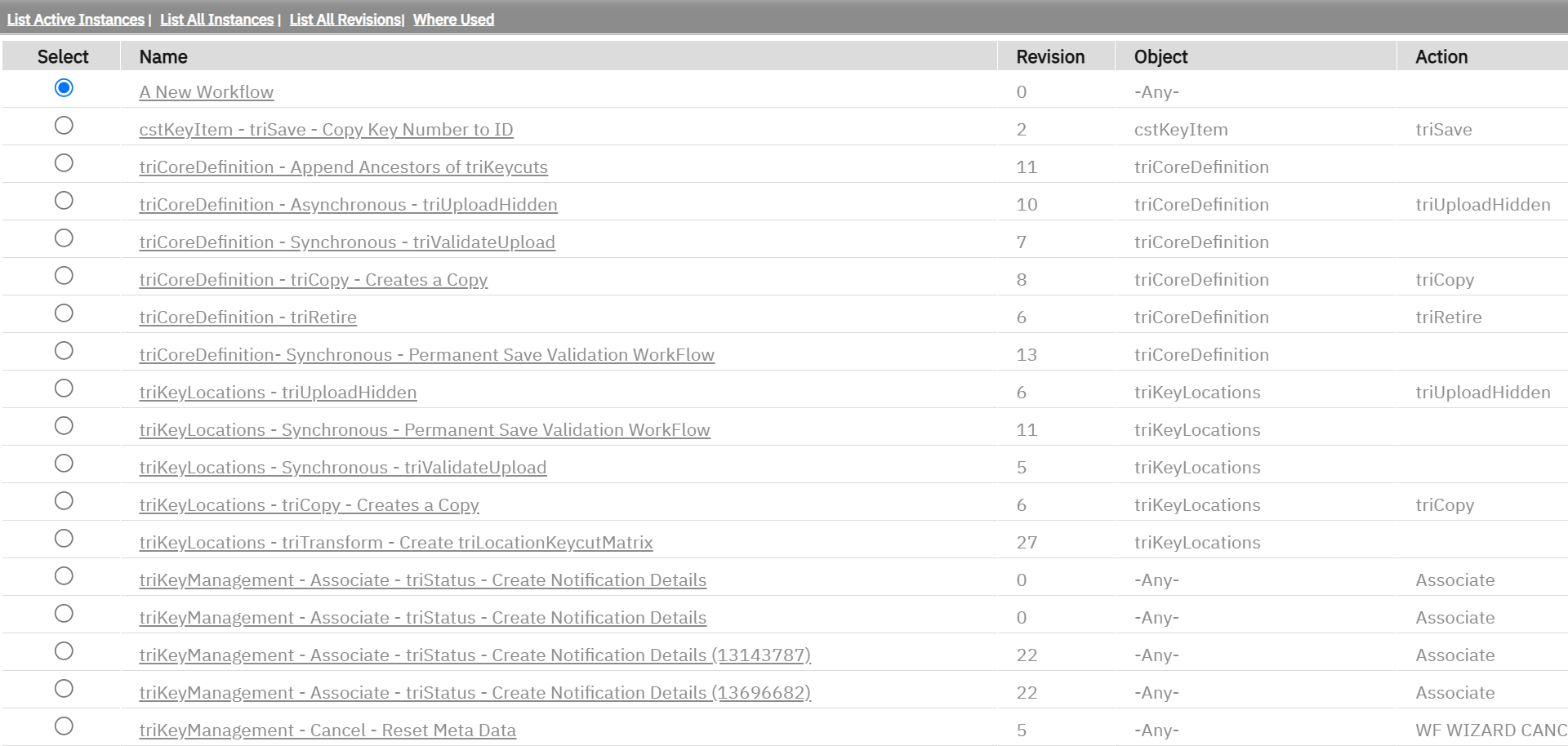
IBM names workflows with a pattern, and the name already answers two of the three questions:
triKeyManagement - triActivate - Submit for Approval and Dependant Record Update
└── on what ──┘ └─ when ──┘ └────────────── do what ───────────────────┘| You see in the list | It means |
|---|---|
Object -Any- | The workflow runs for every business object of the module, not for one. |
Action triSave, triActivate, triRetire, triCopy | The state-transition action that starts it: the user clicked Save, Activate, Retire, Copy. |
Action Associate | It starts when two records are linked. |
| "Synchronous" in the name, no action | It is called by other workflows or by the platform during a save, for example "Permanent Save Validation". |
Action ending in Hidden | An action users do not see as a button; only workflows trigger it. |
| Revision 9, Status Published | Nine versions were made; this one is live. Only one revision is published at a time. |
Nothing says "one workflow per event". On Activate, a key record may start the module's workflow for -Any-
object, plus one for its own business object. To know everything that happens on an event, filter the list on the
Action column.
Part 3Example 1: the Start task of an IBM workflow
We open a real one: triKeyManagement - triActivate - Submit for Approval and Dependant Record Update. Clicking the green Start shows the workflow's properties.
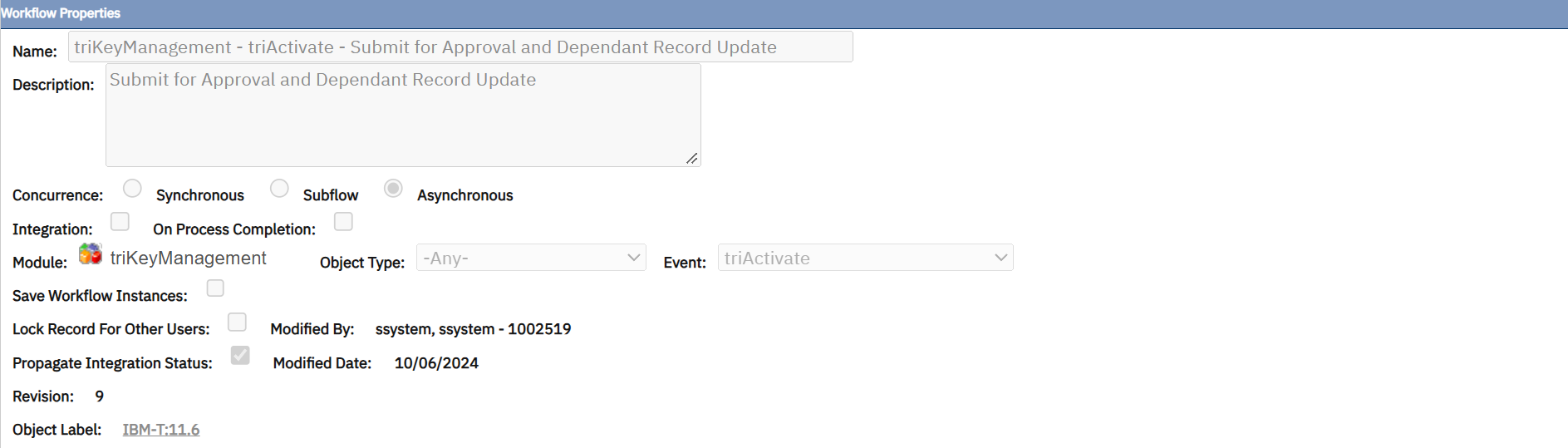
| Property | Here | What it means |
|---|---|---|
| Concurrence | Asynchronous | Runs in the background, after the user's click has returned (Part 6). |
| Module / Object Type / Event | triKeyManagement / -Any- / triActivate | When any key-management record is activated. |
| Save Workflow Instances | off | When on, every run is kept and can be inspected. Turn it on while testing your own. |
| Start Conditions (below) | empty | An optional test: the workflow starts only if it is true. Cheaper than a Switch as first task. |
| Object Label | IBM-T:11.6 | A tag that says which package or release a change belongs to. Tag your own work with your own label. |
Part 4Example 2: the same workflow, task by task
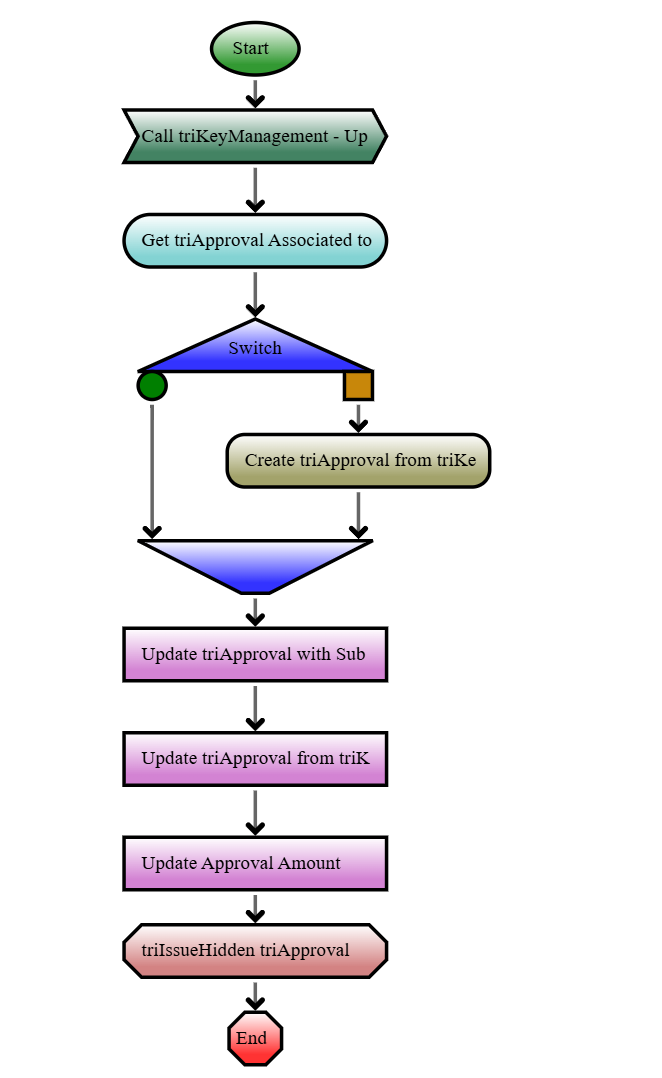
Read it from top to bottom. In plain words: when a key record is activated, make sure it has an approval record, fill that approval in, and start the approval process. Task by task:
| # | Task (shape) | What it does here |
|---|---|---|
| 1 | Call Workflow (dark green arrow) | Runs another workflow, "Update Intermediate Locators", on the same record, and waits for it. This is how common logic is written once and reused. |
| 2 | Retrieve Records (light blue, rounded) | Fetches the approval records linked to this key record through the association "Has Approval". |
| 3 | Switch (blue triangle) | Tests: did step 2 find anything? Green circle: yes. Orange square: no. |
| 4 | Create Record (olive, rounded), on the "no" branch only | Creates an approval record, filled from the key record. |
| 5–7 | three Modify Records (pink) | Fill the approval: who submitted it, values from the key record, the amount. |
| 8 | Trigger Action (red, cut corners) | Fires the action triIssueHidden on the approval record, which starts the approval's own workflows. |
The Retrieve Records task
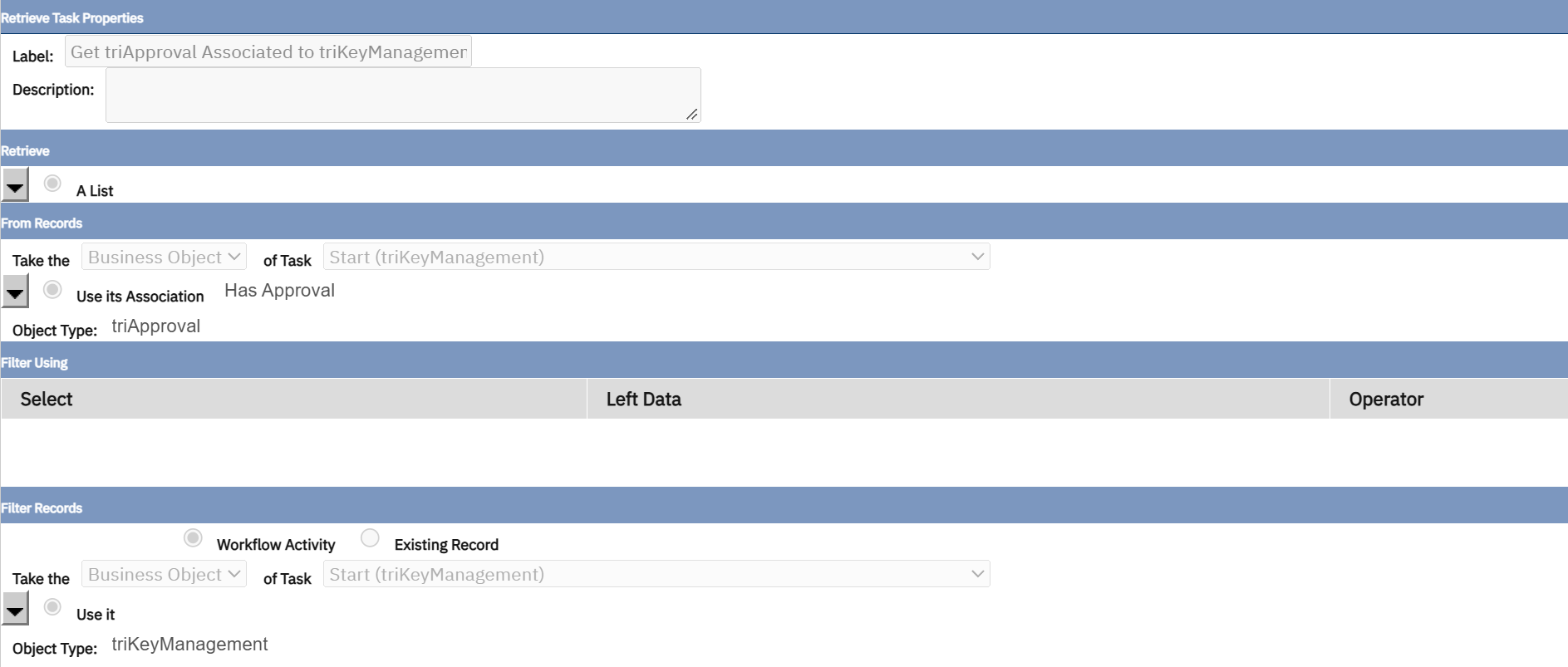
Read the sentence the screen forms: "Take the business object of task Start, use its association Has Approval". That is the MREF way of saying "get the approvals of this record". The Filter sections below can narrow the list with conditions.
This is mbo.getMboSet("APPROVALS"). The association plays the role of the relationship, and the result is
a set of records that later tasks can count, loop over, or modify.
The Switch task

The condition is built by clicking, not typing. The Tasks tree lists every earlier task; expanding one offers its fields and properties, such as Result Count. The Ops list gives the operators, and Insert Number or Insert String adds a constant. The finished expression reads:
Get triApproval Associated to triKeyManagement :: Result Count > 0True goes out through the green circle, false through the orange square. Here the true branch is empty and the false branch creates the missing approval. The two branches join again at the lower triangle.
The Trigger Action task
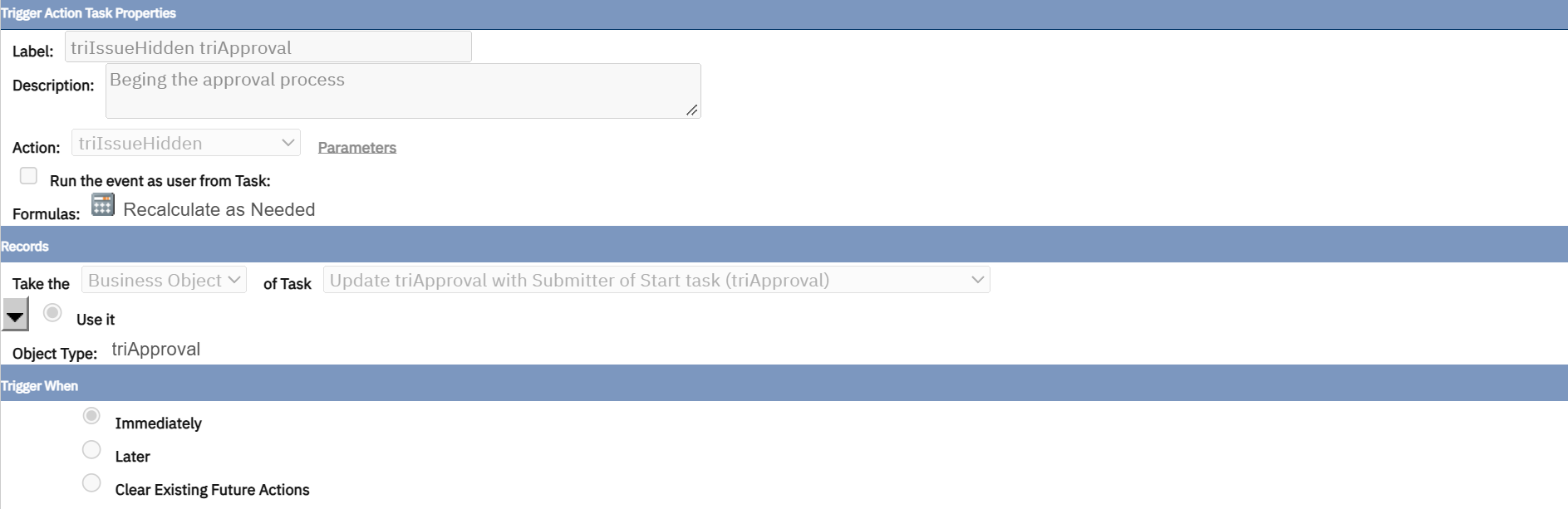
A workflow can click a button for the user: it fires a state-transition action on a record. Three things to read: Action (which button), Records (on which record: here the approval, taken from an earlier task) and Trigger When: Immediately, or Later, which is how MREF schedules something for a future date, such as a reminder ten days before a key is due back.
The triggered action starts whatever workflows listen to it on the approval record. So one user click can run a chain of five or ten workflows across several records. When you investigate "why did this change", follow the chain: each Trigger Action and each Create Record is a door to more workflows.
Part 5The task palette
In a workflow you can edit, hovering over New Task on the left opens the palette. You pick a task, then click the arrow where it should go.
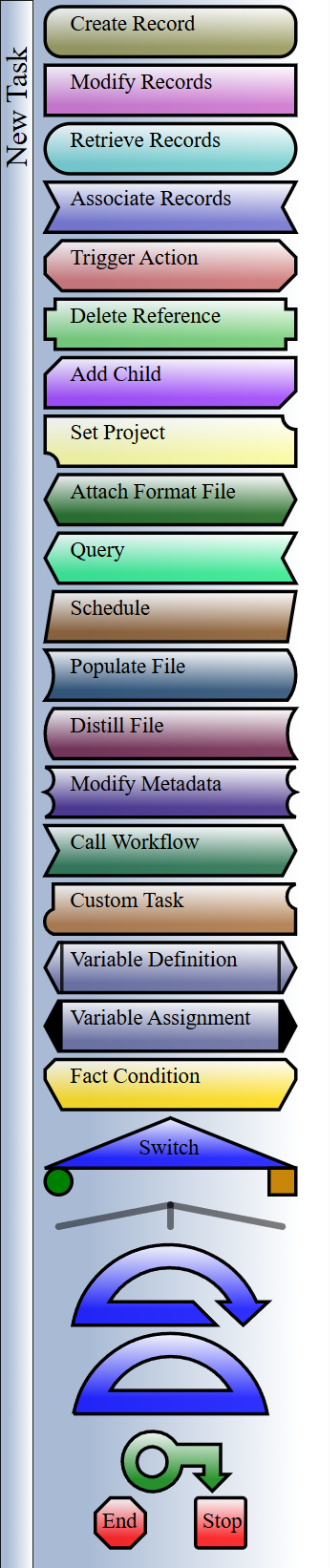
| Task | Use it to |
|---|---|
| Create Record | Make a new record, filled from another one through a map. |
| Modify Records | Change fields of existing records through a map. |
| Retrieve Records | Get records by following an association from a record you already hold. |
| Query | Get records by running a saved query from Report Manager. |
| Associate Records | Link (or unlink) two records. |
| Trigger Action | Fire a state-transition action on a record, now or later. |
| Call Workflow | Run another workflow as a step. |
| Switch | Branch on a condition. |
| Fork | Run several branches one after the other, all of them (not a choice). |
| Loop, Iterator | Repeat tasks: while a condition holds, or once for each record of a list. |
| Variable Definition / Assignment | Keep a value for later in the workflow: a counter, a total. |
| Schedule | Create scheduled events, for work that repeats on a calendar. |
| Populate File, Distill File, Attach Format File | Work with documents: fill a template, read an uploaded file. |
| Custom Task | Call your own Java class: see the Class Loader guide. |
| End, Stop | End this branch normally, or stop the whole workflow. |
Ten of these do nine tenths of the work: Create, Modify, Retrieve, Query, Associate, Trigger Action, Call Workflow, Switch, Iterator and End.
Part 6Synchronous, asynchronous, subflow
| Concurrence | Runs | Use it for | Price |
|---|---|---|---|
| Synchronous | Inside the user's click. The user waits until it ends. | Validation that must stop a save; values the user must see at once. | Every second it takes is a second of frozen screen. |
| Asynchronous | Afterwards, by the Workflow Agent, from a queue. | Everything else: creating related records, notifications, roll-ups. | The user may look at the record before the workflow has finished. |
| Subflow | Only when another workflow calls it. | Logic shared by several workflows. | None; it runs as part of the caller. |
With an asynchronous workflow the save returns first and the change arrives a few seconds later. Refresh the record. If the queue is long or the Workflow Agent is stopped, it can be much later: the Admin Console guide shows where to look.
A synchronous workflow is an automation script on "before save": it can block. An asynchronous one is closer to an escalation that picks the record up a moment later: it cannot block, and it does not slow the user.
Part 7How data moves between tasks
There are no variables passed by hand. Every task that touches records asks the same question, with the same two pickers: "Take the … of Task …". You answer by pointing at an earlier task.
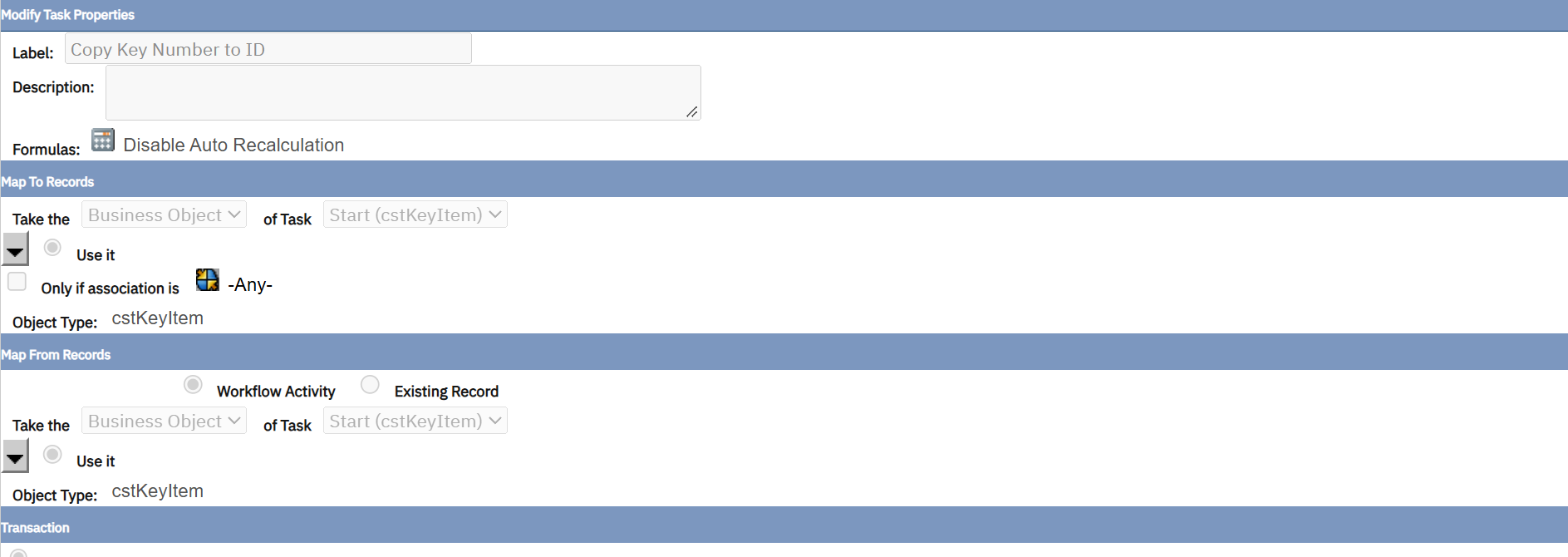
- Map To Records: the records to change. Here the record that started the workflow.
- Map From Records: where the values come from. It can be the same record, the result of a Retrieve or Query task, or a fixed existing record.
- Edit Map then lists every field of the target, and for each you pick the source field.
So a workflow is a chain of hand-overs: Start holds the record; Retrieve holds the list it found; Create holds the record it made; and each later task points back at whichever one it needs. The approval workflow above does exactly that: its Trigger Action takes "the business object of task Update triApproval with Submitter".
In the map, the boxes look like text fields but are filled only by the icons beside them. Text typed into a box is lost without any message, and the workflow then runs and changes nothing. We lost an afternoon to this; the details are in the first guide.
Part 8Example 3: reading a big workflow
Not every workflow fits on a screen. This one, triKeyLocations - triTransform - Create triLocationKeycutMatrix, is at revision 27.
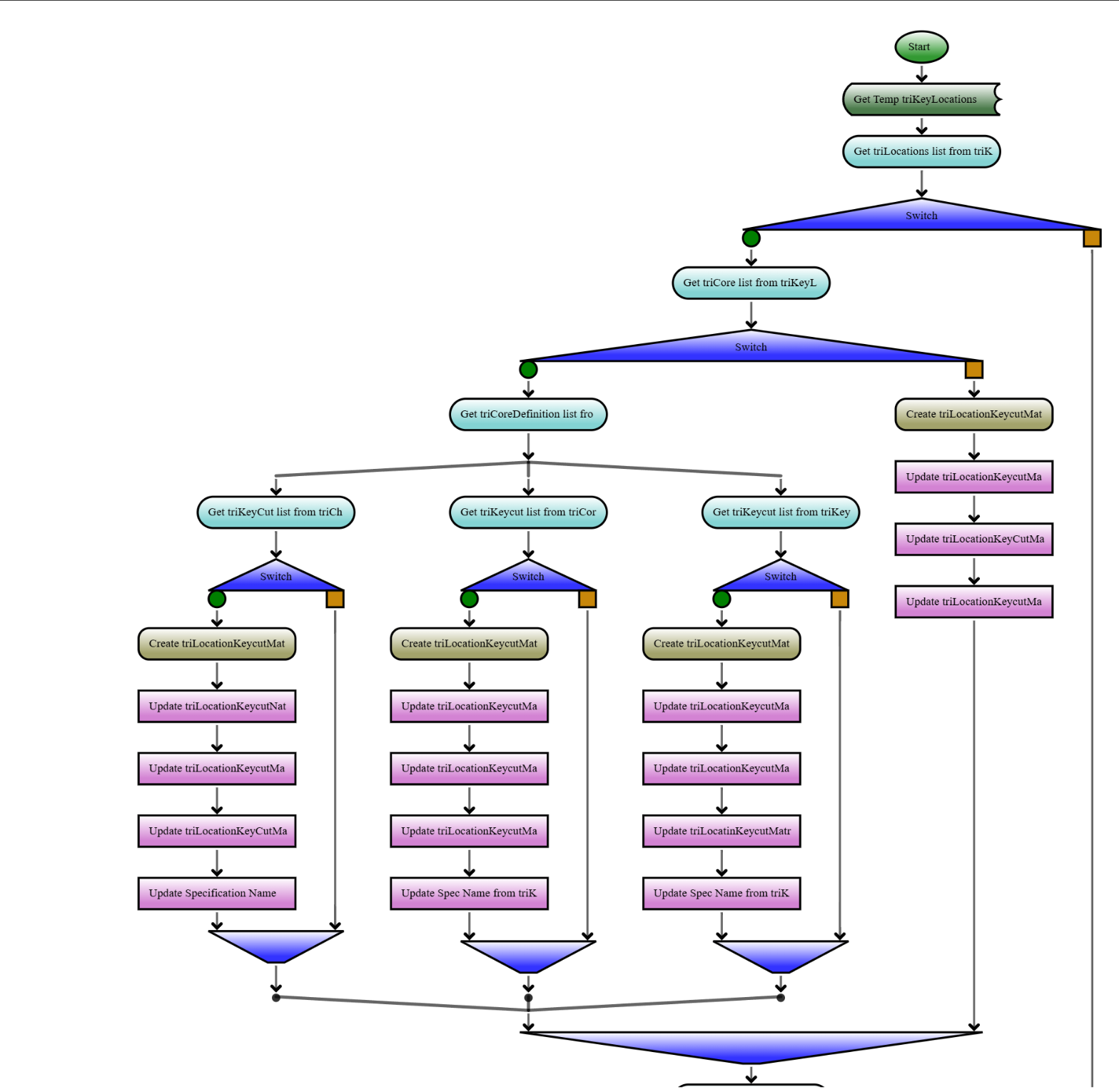
Do not read it box by box. Read its shape first:
- Find the Switches. There are two at the top, one inside the other. Each has a long orange line running down the right side: that is the "nothing to do" exit.
- Find the Fork. Under the third retrieve, the line splits in three with no triangle: all three branches run.
- Spot the repetition. Each branch is the same pattern: retrieve a list, test it, create a record, update it three or four times. Understand one branch and you understand all three.
- Read the labels. IBM labels tasks with what they do: "Get triKeyCut list from…", "Create triLocationKeycutMatrix", "Update Spec Name from…". The labels are the comments of a workflow.
In one sentence: for a key location, look up three kinds of key cuts and create a matrix record for each kind that exists. Two minutes, without opening a single task.
A task with no label shows only its type. Six months later nobody, including you, can read the diagram. Write the label as IBM does: verb, object, source.
Part 9Example 4: our own workflow, and your turn
The second line of the list in Part 2 is the workflow we wrote in the first guide: cstKeyItem - triSave - Copy Key Number to ID. With what you now know, it reads in one line:
| Question | Answer |
|---|---|
| When? | triSave, asynchronous |
| On what? | Module triKeyManagement, business object cstKeyItem (our Key) |
| Do what? | One Modify Records task: Map To the Start record, Map From the Start record, and in the map triIdTX takes cstKeyNumberTX |
It is at revision 2 because revision 1 did nothing: the map trap of Part 7.
Your turn: a workflow with a branch
The IBM approval workflow gives you the pattern for the most common need of all: "do something only if it is not already done". Try it on the Key Register, where each key can be linked to spaces:
| Step | Task | Settings |
|---|---|---|
| Start | Name cstKeyItem - triSave - Check Key Has a Space; Asynchronous; module triKeyManagement; object cstKeyItem; event triSave; Save Workflow Instances on. | |
| 1 | Retrieve Records | A list; take the business object of task Start; use its association to the space; object type triSpace. Label: "Get spaces of this key". |
| 2 | Switch | Condition: Get spaces of this key :: Result Count > 0 |
| 3 | Modify Records, on the true branch | Map To the Start record, Map From the Retrieve task; in the map, pick a field of the space (its name) into a field of the key. |
| End | Publish, then save a key that has a space and one that has none, and open List All Instances to see which path each took. |
This one is an exercise: we have not built it on our system, so treat the settings as a plan, not a recipe. The tasks and the condition are the ones you saw working in the IBM workflow.
Part 10When a workflow does nothing
| Check | Where |
|---|---|
| Is it published? "Revision In Progress" does not run. | Status column of the list. |
| Is it listening to the right event, on the right object? | Start task. An action named triSave on the form may not be the event you chose. |
| Did the event happen? Saving an unchanged record may send nothing. | Change a field, then save. |
| Did the start condition let it in? | Start Conditions on the Start task. |
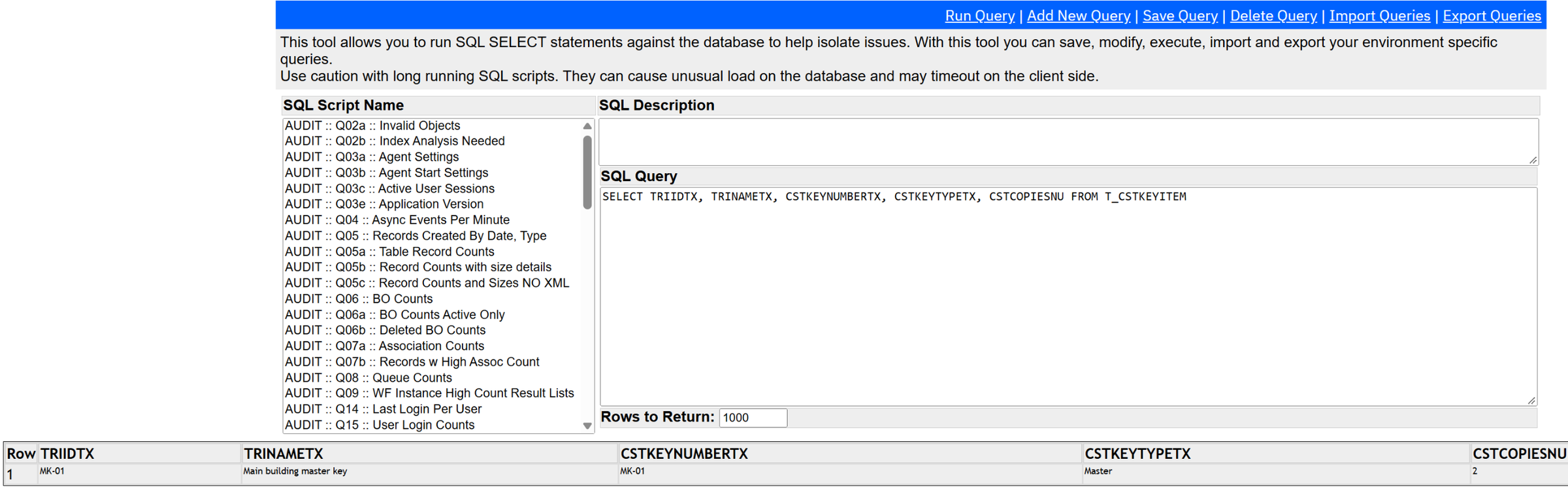
| Is the Workflow Agent running, and is the queue moving? | Admin Console › Agents; the event table through the Database Query Tool. |
| Is the agent using your new revision? | Admin Console › Caches › Workflows For Agent. |
| Which path did it take? | Tick Save Workflow Instances, run again, then List All Instances: the instance shows each task it went through. |
| Did a map do what you think? | Open Edit Map and read it as saved. |
To change what a shipped workflow does, do not revise it: the next upgrade replaces it. Write your own workflow on the same event, or copy the IBM one, rename the copy with your prefix, retire the original and publish yours. And tag everything you make with your own Object Label, so you can find it and move it later.
Check yourself
1. A workflow is named "triBuilding - triRetire - Retire Child Spaces". What are its three answers?
When: the Retire action. On what: buildings. Do what: retire the spaces under them.
2. A validation must stop the save when a date is in the past. Synchronous or asynchronous?
Synchronous. Only a synchronous workflow runs before the save completes and can block it.
3. In a Switch, which exit is "true"?
The green circle. The orange square is false.
4. How does a Modify task know which records to change?
Through Map To Records: "take the business object of task …", pointing at an earlier task that holds them.
5. A user clicks Activate once and four records change. How do you find out why?
Filter the workflow list on that action, open each workflow, and follow every Trigger Action, Create Record and Call Workflow: each one can start more workflows.
Glossary
- Workflow
- A diagram of tasks that MREF runs when an event happens to a record.
- Event
- What starts a workflow: a state-transition action, an association, a schedule.
- State-transition action
- A button of the record's lifecycle: Save, Activate, Retire…
- Concurrence
- Synchronous (inside the click), asynchronous (afterwards), or subflow (called).
- Task
- One box of the diagram.
- Map
- The field-by-field list that says where each value of a created or modified record comes from.
- Switch
- A task that chooses between two branches with a condition.
- Fork
- A split where every branch runs.
- Workflow instance
- One run of a workflow, kept for inspection when the option is on.
- Workflow Agent
- The background worker that runs asynchronous workflows.
- Object Label
- A tag on configuration objects that identifies a package or a release.
Stuck on a workflow that does nothing, or planning your first one? Send me a message and we can read it together.
Screens: IBM Maximo Real Estate and Facilities on IBM Maximo Application Suite, with IBM's GreenPoint demo data. The workflows shown in Parts 3, 4 and 8 are IBM's, as shipped. All names and dates are demo values.